Unity Converting Mouse to Screen Position
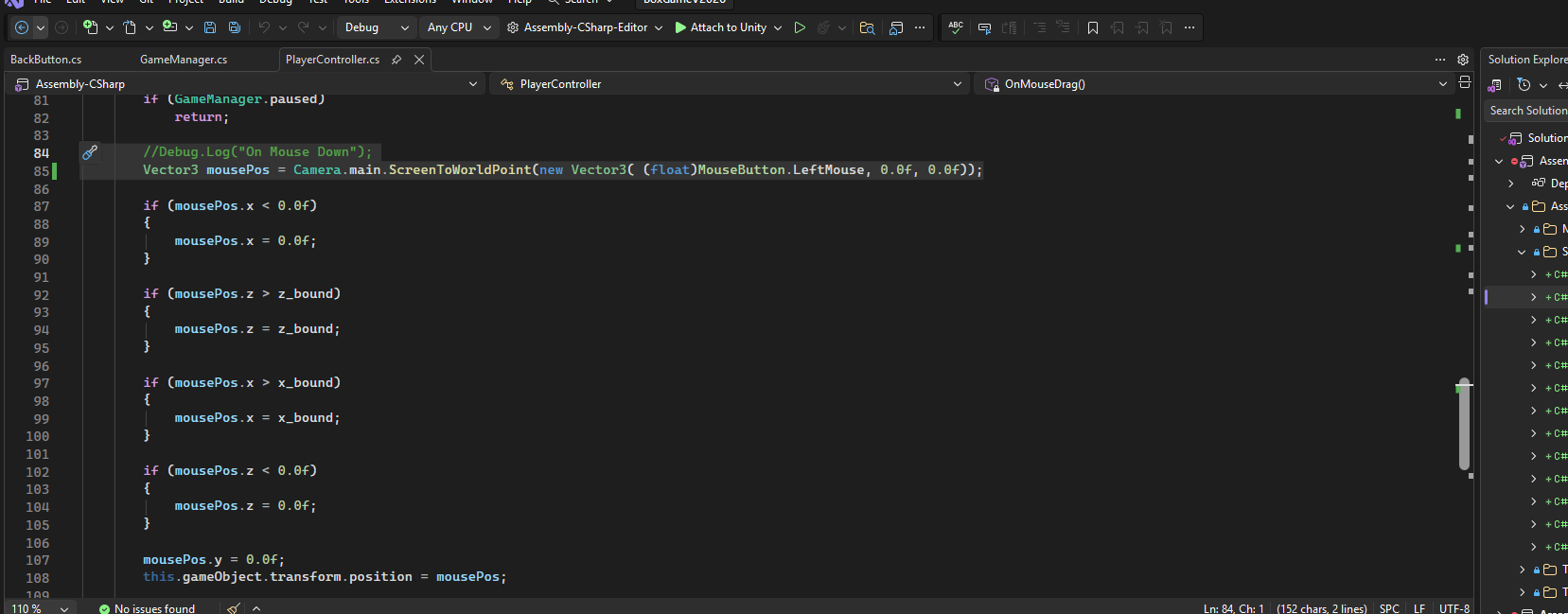
        //Debug.Log("On Mouse Down");
        Vector3 mousePos = Camera.main.ScreenToWorldPoint(new Vector3( (float)MouseButton.LeftMouse, 0.0f, 0.0f));
When working on older Unity projects, you'll often encounter the legacy Input Manager instead of the newer Input System package. One of the most common tasks in these older projects—especially in top-down or 2D games—is converting the mouse's screen position into a point in your game's world space.
Here is an example of code handling mouse drag in Unity, converting the mouse position:
In the old system, getting the mouse position is straightforward:
Vector3 mousePos = Input.mousePosition;However, this gives you a position in screen pixels, which doesn't directly map to where your character or cursor should be in the game world. To solve this, we use the main camera to translate those pixels into world coordinates.
For 2D Games (Orthographic)
In 2D, the conversion is simple because depth (Z-axis) doesn't change perspective:
Vector3 mousePos = Input.mousePosition;
mousePos.z = Mathf.Abs(Camera.main.transform.position.z);
Vector3 worldPosition = Camera.main.ScreenToWorldPoint(mousePos);
For 3D Games (Perspective)
In 3D, casting a ray from the camera through the mouse position is usually the best approach, hitting a mathematical plane or a physics collider:
Ray ray = Camera.main.ScreenPointToRay(Input.mousePosition);
RaycastHit hit;

if (Physics.Raycast(ray, out hit)) {
    Vector3 worldPosition = hit.point;
    // Use the worldPosition here
}
While Unity's new Input System is the future, understanding these legacy Input.mousePosition techniques is essential for maintaining older codebases. Happy coding!